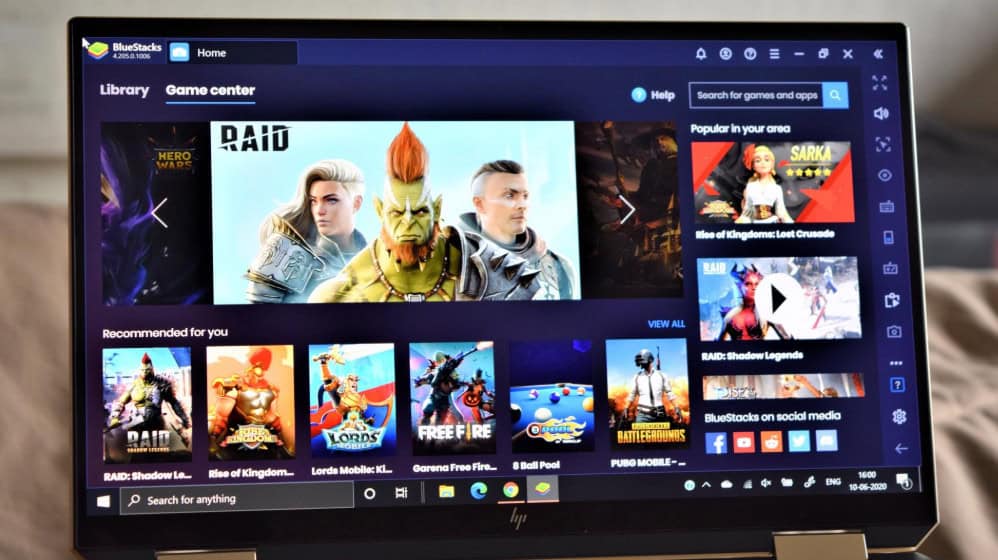
Play Mobile on Games PC Using Bluestacks
BlueStacks Review Guide
Bluestacks is one of the most established Android emulators for Windows and macOS, allowing users to run Android games and apps directly on a computer. It is particularly useful for players who want PC controls, a larger screen, better visibility, and access to mobile games without relying entirely on a smartphone.
For gamers interested in downloading BlueStacks, its main advantage is straightforward: it provides a convenient way to play supported Android games on a PC while offering features designed specifically for gaming.
Bluestacks features
- 🎮 Android Gaming on PC — Play supported mobile games on Windows and macOS.
- 🕹️ Controller Support — Use compatible gamepads and controllers for supported games.
- ⌨️ Keyboard & Mouse Controls — Replace touchscreen controls with PC-style inputs.
- 🎯 Custom Controls — Configure and customize controls for different games.
- 🖥️ Large-Screen Gaming — Play mobile games on a desktop or laptop display.
- ⚡ Performance Settings — Adjust CPU, RAM and graphics settings to suit your PC.
- 🔄 Multiple Instances — Run multiple BlueStacks instances for supported games and apps.
- 📱 Android App Support — Access supported Android games and applications.
- 🎥 Screen Recording — Record gameplay directly through supported BlueStacks features.
- 🌐 Internet Connectivity — Play supported online Android games using your PC’s internet connection.
- 🔧 Game-Specific Optimization — Provides settings and tools designed to improve the experience for supported games.
- 💾 PC Storage Access — Transfer or access certain files between your PC and the Android environment.
- 🆓 Free to Download — BlueStacks itself can be downloaded and used without purchasing the emulator.
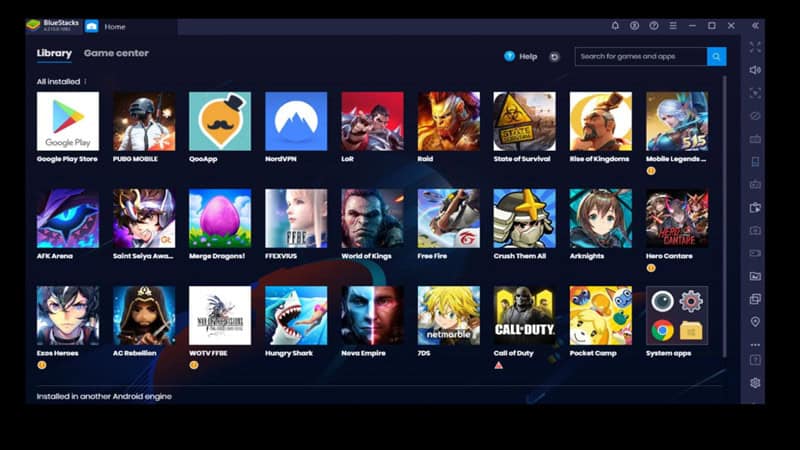
Why Download BlueStacks
BlueStacks is worth considering if you want to play mobile games on a larger screen or prefer using a keyboard and mouse instead of touchscreen controls.
Its gaming-focused features can make certain mobile games more comfortable to play, while configurable controls allow players to adapt keyboard and mouse inputs to supported games.
Bluestacks Emulates Mobile to PC
BlueStacks remains a strong option for users looking for an Android emulator for PC and a convenient way to play mobile games on Windows or macOS. Its gaming-oriented controls, performance configuration and large-screen experience make it a practical choice for mobile gamers moving to PC.
If your main goal is simply to download BlueStacks and start playing supported Android games on your computer, the official installer is the best place to begin.
How to Play PC Games On Mobile With Boosteroid
- Click Download BlueStack
- Save the installer to your PC.
- Open the downloaded installer.
- Wait for the installation to complete.
- Launch BlueStacks.
Sign in with your Google account if required. - Open the Google Play Store.
- Search for your desired Android game.
Install the game. - Launch the game and configure your keyboard, mouse, or controller.
- Start playing